Solution: So who doesn't love user profiles? Well, the users aren't too fond of them when their profile gets corrupted, and as a systems engineer who works on Citrix I can say that I get awfully tired of resetting them. It's a rare instance when users and sysadmins are in full agreement.
But like many crummy things, profiles are the best of a bad lot.
This post won't delve into quite as many technical details as some of my others, but I thought I'd pass along the best practices that I've learned, most of which won't be new if you've worked on profiles before. But it may help you avoid some of the pitfalls I've tumbled headlong into.
Profile Location. A profile is just a folder with a bunch of files in it, so it can go on pretty much any shared folder. I always like to name this folder "CitrixProfiles" so other sysadmins will leave it alone so they don't get Citrix all over themselves. You can just put it at the root of a share, but I normally do it like this:

You'll see that this path includes a template for what each user's profile will be. I highly encourage you to use %username%.%userdomain% as in the picture, even if your environment only has a single domain. Someday that might change and it's very difficult to go back and reorganize profiles.
I'd really prefer if Citrix allowed us to use the environment variable %userdnsdomain% but if you can read the text near the bottom of the profile policy image, that's not allowed.
Profile Permissions When setting profile permissions, you'll have two goals: 1) Users who are logging on for the first time must be able to create a profile folder, and 2) users should not have access to other people's folders. To implement that, we'll use two different sets of permissions.
(As for share permissions, users will need modify rights and administrators will need full control.)
The first set of permissions will be for "Authenticated Users" - anyone who can log on to a Citrix server - and will apply to "This folder only":

It's not obvious what those permissions mean, but what it amounts to is that all authenticated users can create a subfolder in this folder, CitrixProfiles, but they cannot see into other user's folders. When a user creates a folder, they become the Creator Owner of that folder. Creator Owner is an object that can be assigned permissions. In fact that's how we'll grant the user rights. Here is the second set of permissions we'll use:
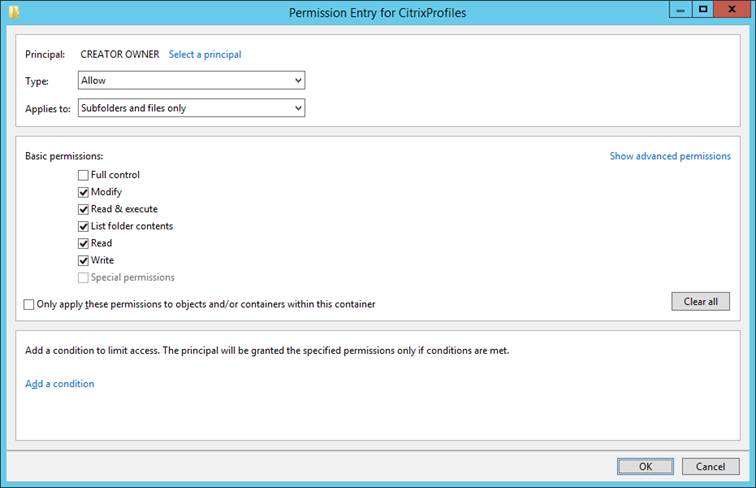
As you can see, setting rights for the Creator Owner object, but not for the CitrixProfiles folder - for subfolders and files only (subfolders of the user's own profile folder, not CitrixProfiles itself). By the way, I have seen some documents that suggest giving users the "Full control" permission on their profile folder. DO NOT DO THIS!! I cannot emphasize that enough. Users only need rights to modify the contents of their folder, they do not need to be able to set permissions on their folder as well. Of course no user would ever do that but the process that saves their settings runs as the user. Sometimes things go wrong, and if the account has the ability to change permissions then the permissions will get bunged up from time to time.
You should also apply permissions for whatever administrators' group you're using. This group will need full control, and it will be applied to "This folder, subfolders, and files" so it will have permission to everything.
One other thing - if your organization has an IT Security team, and if that team ever has to update permissions on your profile folder, they'll probably take ownership of the file system, which will make all the users' profiles unavailable since they rely on the user being the owner. I do have a Powershell script that can get a list of all the profiles, look up the user with the profile name (which is the username) and profile extension (the domain), and then grant the user explicit rights to the folder. I'll post it in a few days, so watch this space.


